Teams4 min read
Async stand-ups that actually happen
How distributed teams use a single 17:00 alarm to replace the daily status meeting, keep blockers visible and protect everyone's focus time.
The daily stand-up was designed for a team sitting in one room. Fifteen minutes, everyone standing, a quick round of "yesterday, today, blockers". For a co-located team it can work well.
For a team spread across three cities and two time zones, it often turns into something else: a video call scheduled at a time that's early for some and late for others, where people read out updates that could have been a sentence, and where the one real blocker gets mentioned in passing and forgotten by lunch.
Many teams switch to written async updates instead. That's a good instinct. The trouble is that written updates tend to fade. Week one, everyone posts. Week three, it's half the team. By week six the channel is a graveyard and the meeting is back.
The missing piece is the reminder
Async updates don't fail because people dislike writing them. They fail because nothing asks for them at the right moment, and nothing makes the absence of an update visible.
That's exactly what an UpWatch alarm does. Here's a setup that works for most teams.
The setup
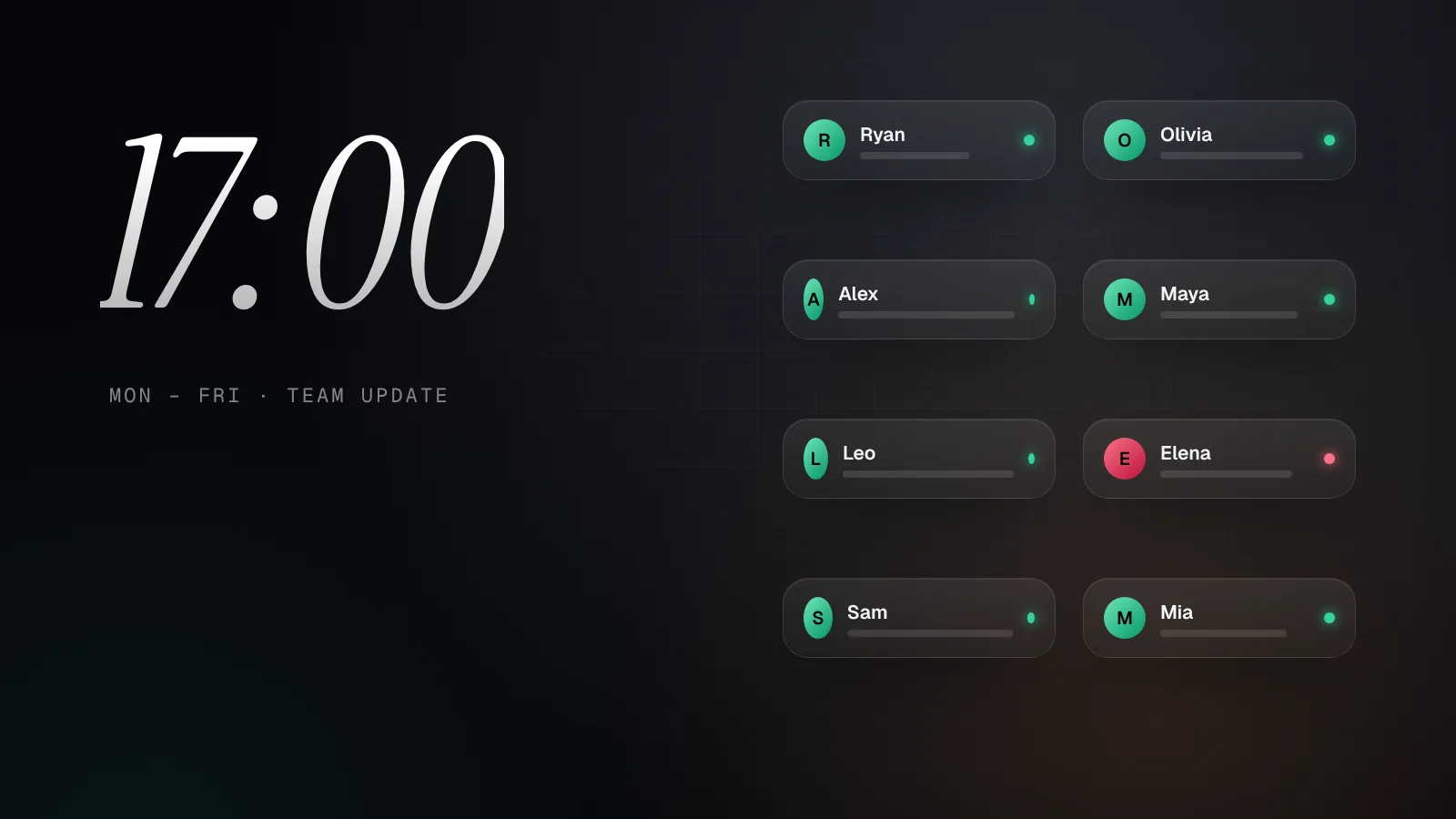
Create one alarm called something like "Team update".
Schedule it for the end of the working day, Monday to Friday, at 17:00. Times follow each person's own time zone, so 17:00 means 17:00 wherever someone is.
Make everyone a sender, including the team lead. An update ritual that the lead skips doesn't last.
Make the team lead and the team recipients, so everybody sees everybody's progress. If you prefer, only the lead can be a recipient, but shared visibility usually helps people coordinate without extra pings.
Give one or two people admin rights so they can add new teammates when the team grows.
That's it. At 17:00 every sender gets a reminder and shares their update in a few seconds.
What a good update looks like
Keep it to one line and lead with the outcome:
- "Quarterly report done, sent to Olivia for review."
- "Client deck is ready for tomorrow's call."
- "Half day on the migration, finishing tomorrow."
- "Blocked on API keys from the vendor. Need a hand."
Green means "on track". Red means "I need something from someone". That one rule turns the update into a lightweight blocker detector. A red at 17:05 gets resolved at 17:20 instead of in tomorrow's meeting.
Reading the team at a glance
For the lead, the payoff is a calm overview. Instead of reading a long channel, you see a column of colored updates under one alarm. All green? Nothing to do. One red? You know exactly where to look.
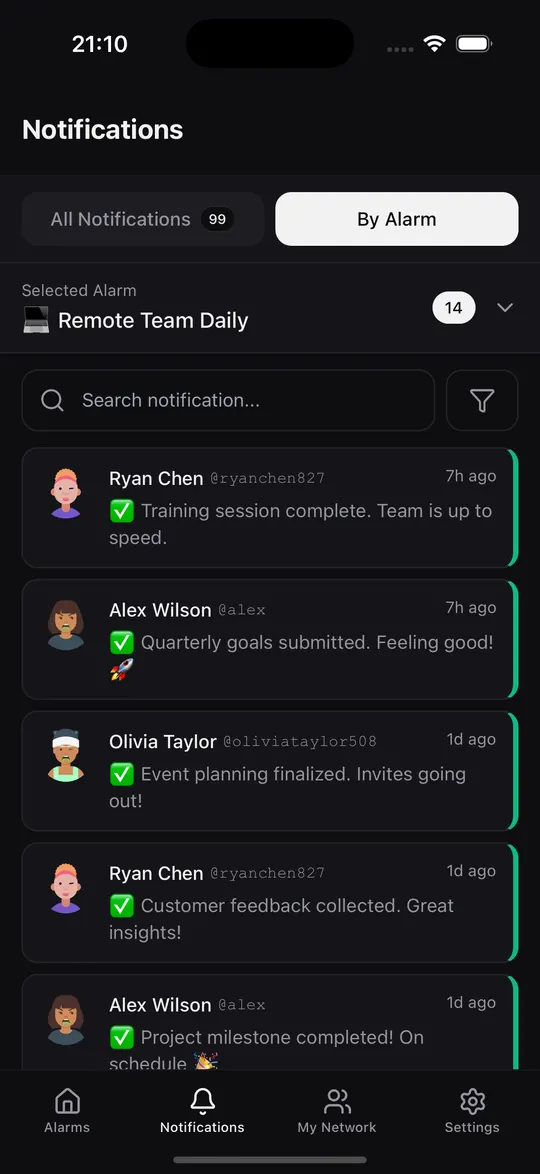
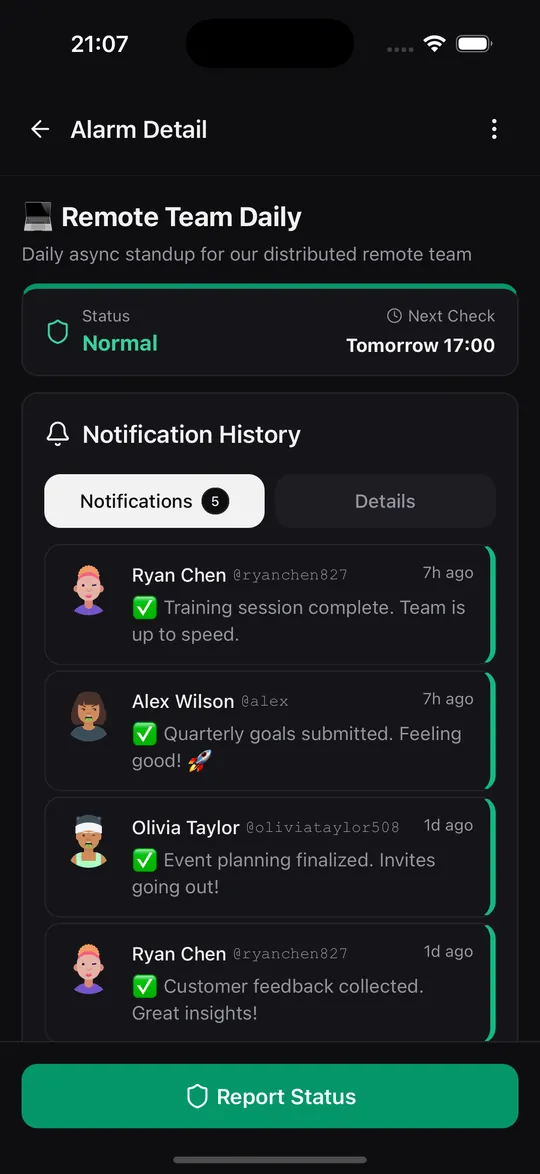
Over a week, the history shows patterns no meeting would surface: someone who's been red three days in a row, a project that keeps slipping on Thursdays, or a quiet week where everything simply worked. On Premium and Pro, the activity heatmap shows the whole week as a grid.
Privacy across departments
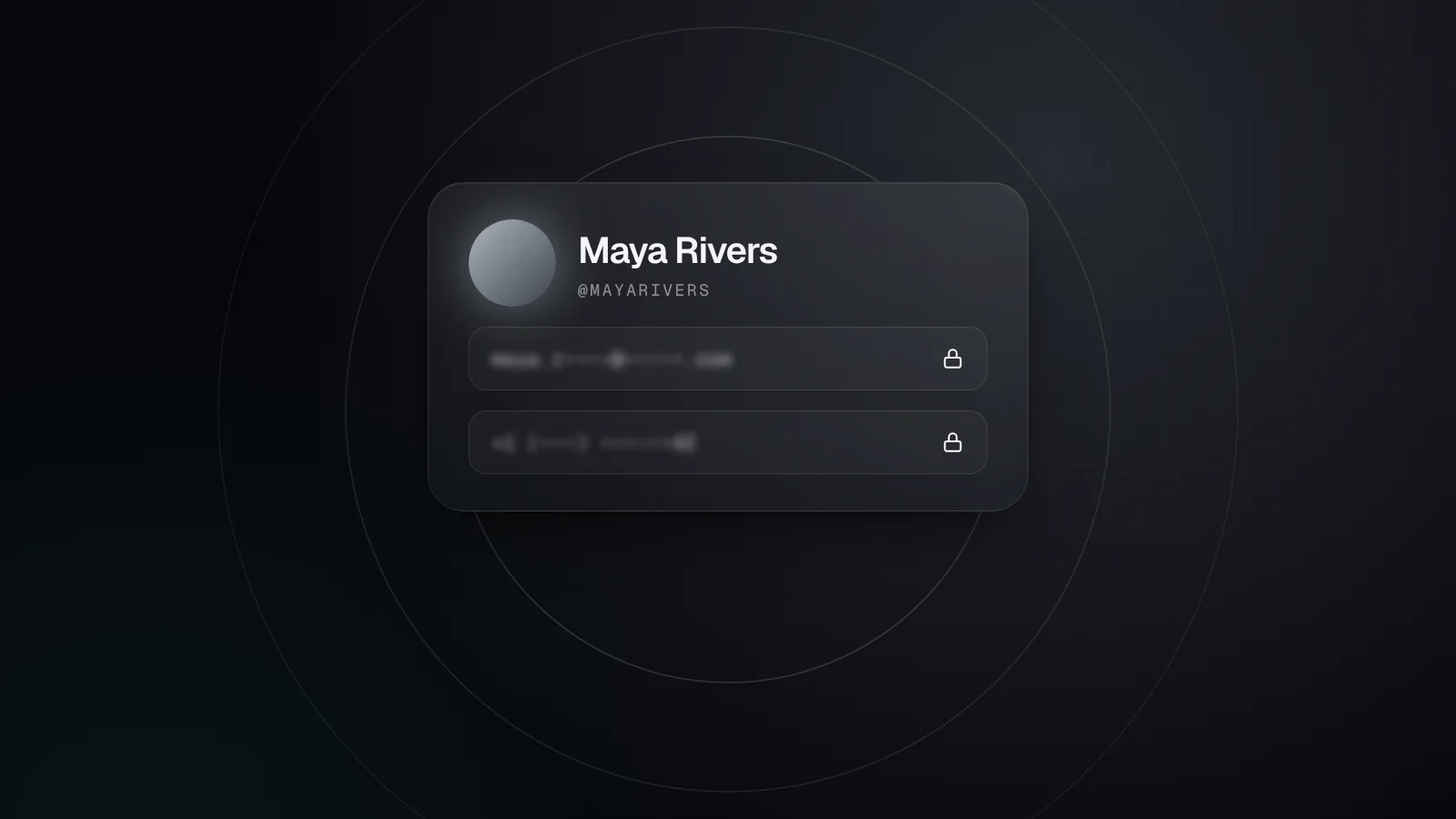
Cross-functional teams often include people who don't know each other well: contractors, people from other departments, or partners at another company. In UpWatch, participants see each other's name and profile photo, but not their email address or phone number, and there are no direct messages. Updates stay inside the alarm they belong to.
That makes it easy to include everyone who should be in the loop, without exchanging personal contact details.
Keep it healthy
A status ritual can become oppressive if it's used to police people. A few guidelines keep it useful:
- Measure outcomes, not presence. The point is to share progress and surface blockers, not to prove someone was at their desk.
- One update a day is plenty. If you need hourly updates, that's a sign of a different problem.
- Don't punish missed updates. If someone misses a day, a quick human conversation beats an automated guilt trip.
- Respect time off. Remove people from the schedule rather than expecting updates during holidays.
UpWatch is a coordination tool, not employee monitoring software. Used well, it gives people more quiet time, because nobody needs to interrupt them to ask how it's going.
Try it for two weeks
Run the 17:00 alarm for two weeks before deciding anything. Keep the meeting if you like and see how often it still adds something the updates didn't. Most teams end up shortening it, or turning it into a weekly conversation about the reds.
The best stand-up is the one that happens every day, takes thirty seconds and never needs a calendar invite.
Try it with your people
Create your first group alarm in under a minute. Free to start.