Guides4 min read
Set up your first group alarm in under a minute
A practical walkthrough, from connecting with your people to reading your first week of updates, with the small choices that make an alarm work well.
Setting up an alarm takes less time than writing the message you'd otherwise send. This guide walks through it step by step, with a few tips on getting the details right. We'll use a school-run alarm as the example, but the steps are the same for a team update or a gym streak.
Before you start
You'll need the UpWatch app on your iPhone or iPad and an account. You can sign up with your email address or with Google or Apple. Allow notifications when the app asks: reminders are the heart of UpWatch, and without them senders won't know it's time.
1. Connect with your people
People need to be in your network before you can add them to an alarm. Open the Network tab and search for them by email address or username, then send a connection request. Once they accept, they're ready to be added.
This step is deliberate. Nobody can be dropped into an alarm by a stranger, and connections stay private: participants in an alarm never see each other's contact details.
2. Create the alarm
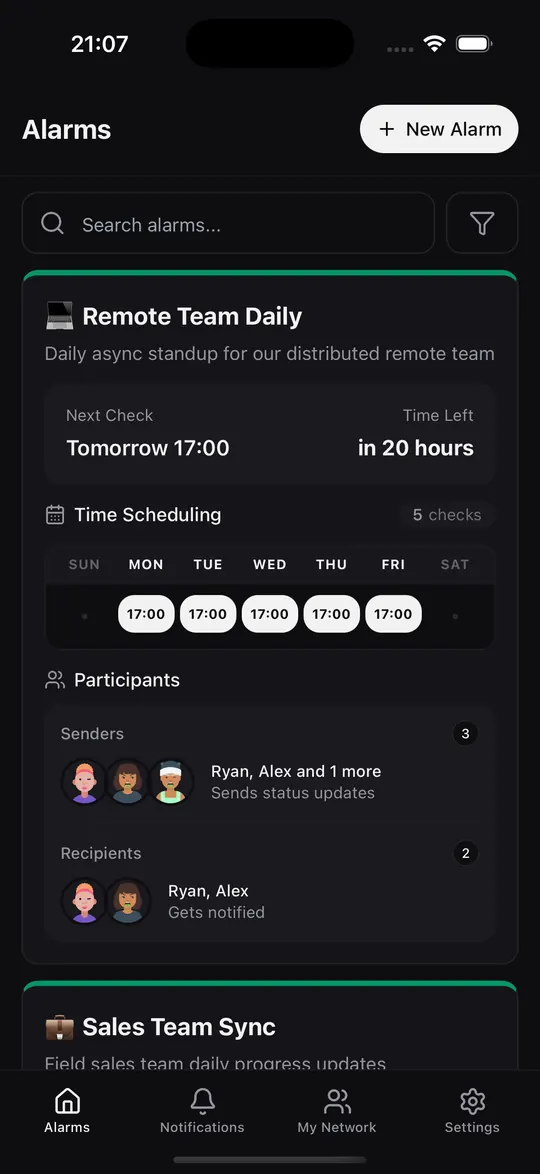
On the Alarms tab, tap New Alarm and give it a clear name. A name that says what it is for is easier to spot in a busy notification list, so "School run" works better than "Alarm 1". Add a short description if it helps everyone understand what the updates are about.
3. Choose the days and times
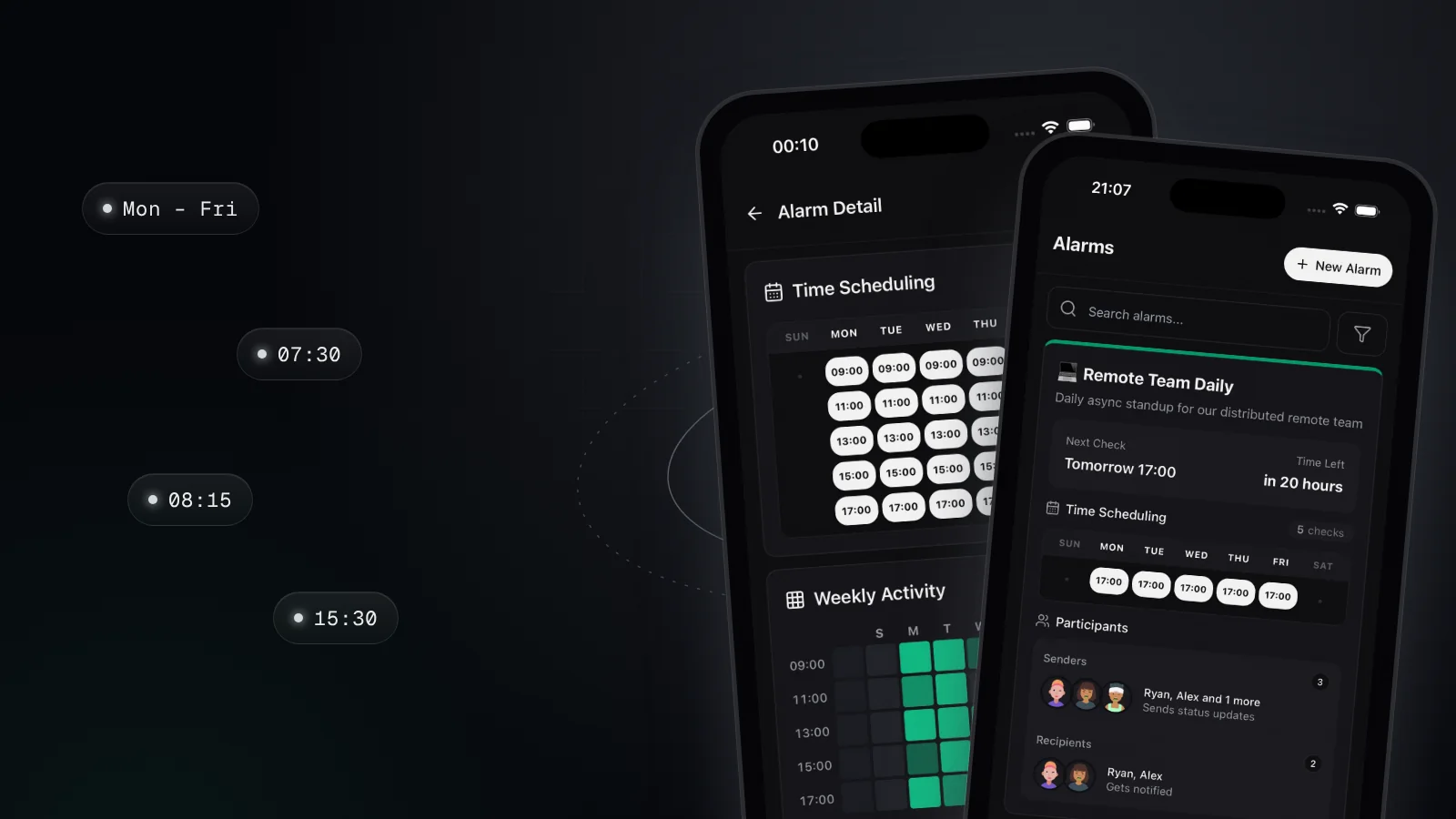
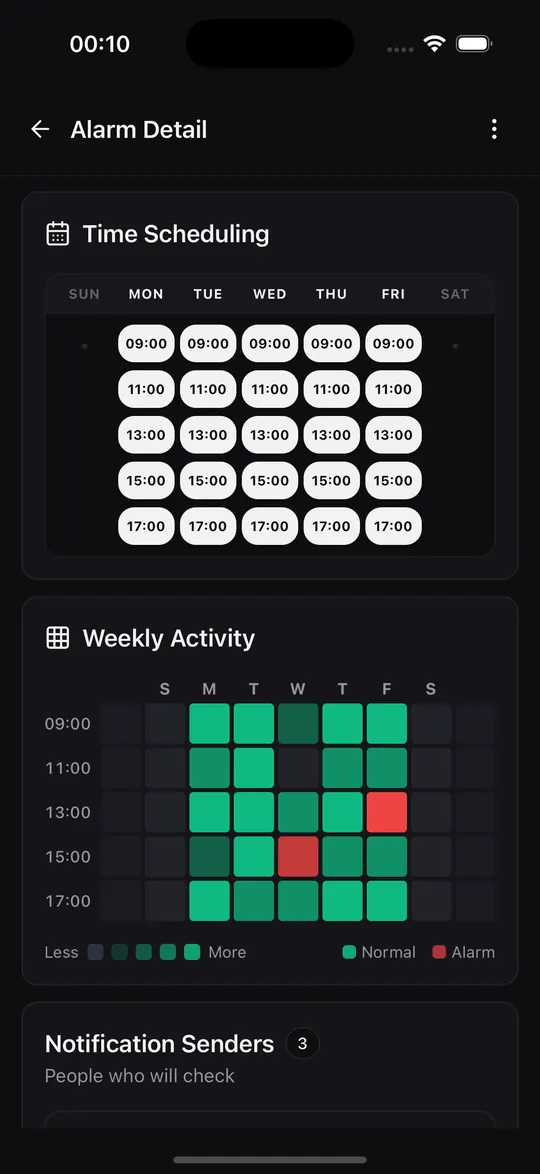
Pick the days the alarm should run and add one or more check times. For a school run that might be weekdays at 07:30, 08:15 and 15:30. Each check time is a moment when senders get a reminder.
A few tips for good timing:
- Set times a few minutes after the event, not before. If the bus leaves at 07:25, a 07:30 reminder catches the real answer.
- Fewer, meaningful times beat many vague ones. Three check-ins a day that matter are better than eight that get ignored.
- Time zones are handled for you. Times follow each person's time zone, so a remote team spread across countries still checks in at their own 17:00.
4. Add senders and recipients
Now decide who does what:
- Senders share updates. In our example, the kids.
- Recipients receive them. The parents.
Someone can be both. Gym buddies and challenge groups usually work that way, with everyone sharing and everyone seeing.
You can also make recipients admins, so they can help add or remove participants and edit the alarm. The owner, the person who created the alarm, is always an admin and is the only one who can delete it.
5. Let the first reminder arrive
That's the setup. At the next check time, each sender gets a reminder notification. They can open it and share their status, or long-press it and pick Normal or Alarm right from the lock screen.
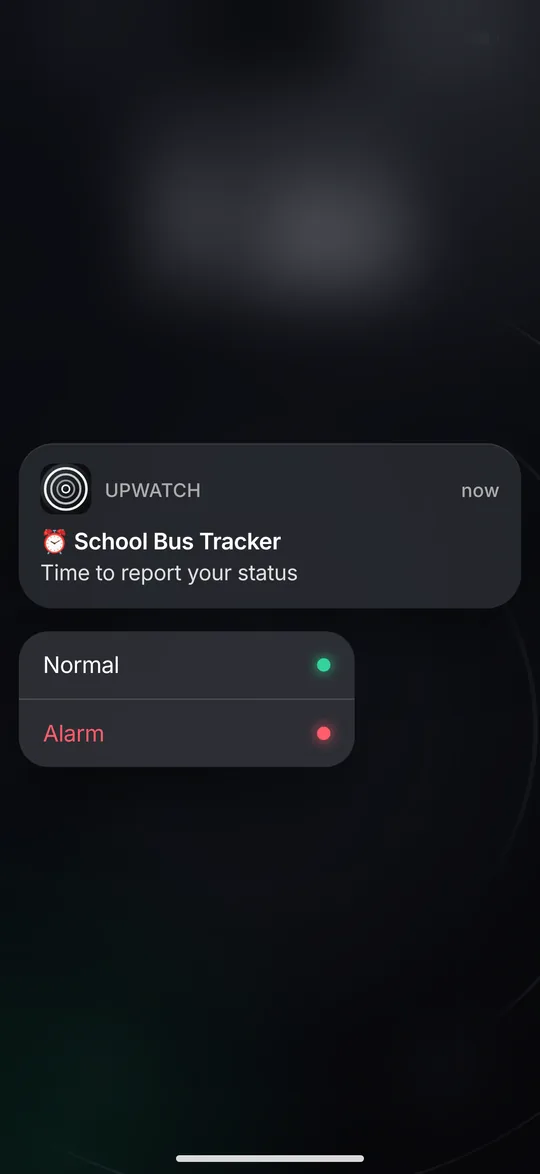
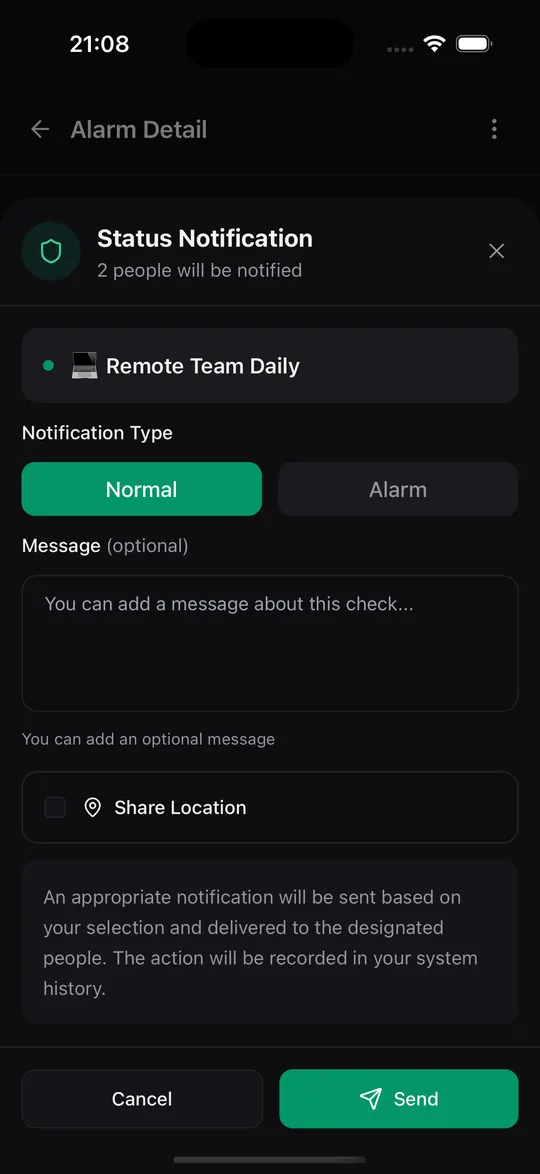
Every update is either:
- Normal (green): all good, routine continues.
- Alert (red): something needs attention.
Senders can add a short message, like "At school! Pizza day", and attach their location for that one update if it's useful. Location is never shared unless they choose to add it.
6. Read your first week
Recipients see each update as it arrives, and the alarm keeps a tidy history. Open the alarm to see every update grouped by check time, or use the Notifications tab to filter by alarm.
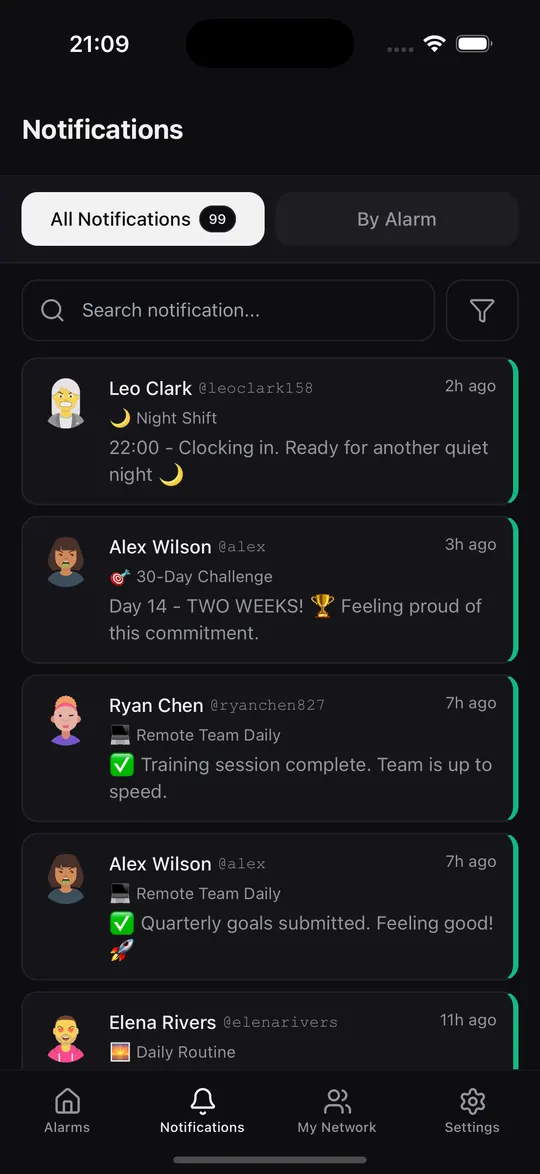
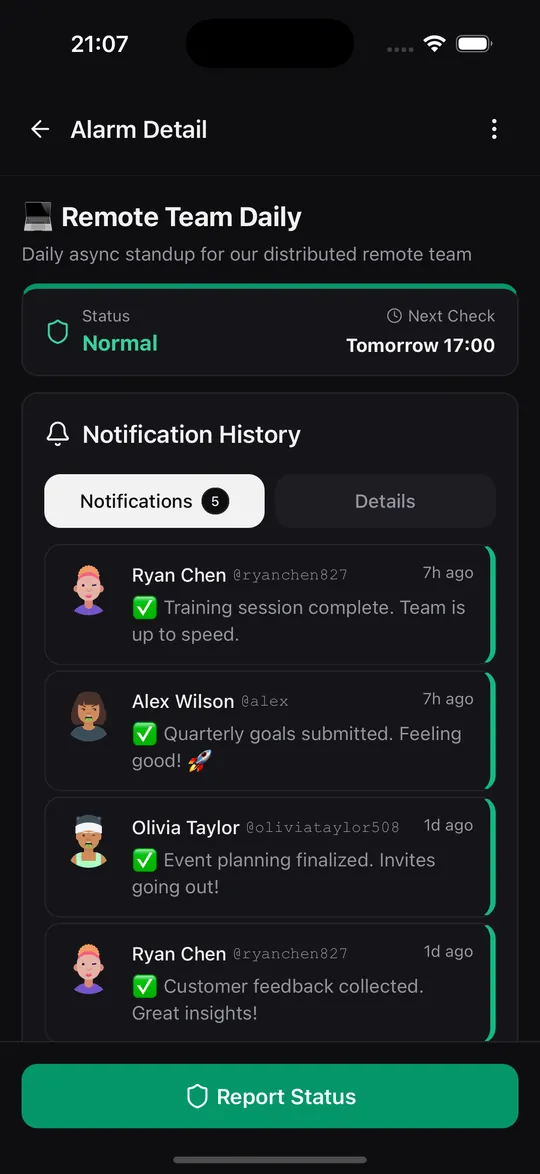
How far back you can look depends on your plan: 24 hours on Free, 7 days on Premium and 30 days on Pro. Premium and Pro also include the weekly activity heatmap, which shows the whole week as a grid of green and red.
Small settings worth knowing
Only alerts. If an alarm is busy, open its menu and set the notification preference to Only alarms. You'll still get every red update, and the greens stay in the history without buzzing your phone.
Leaving an alarm. Open the alarm, tap the three-dot menu and choose Leave Alarm. You'll stop receiving its updates.
Face ID. In Settings you can require Face ID or Touch ID every time the app opens.
That's it
Most people are done in under a minute. The best part comes the next morning, when the first update arrives on its own and nobody had to ask.
If you get stuck, the user guide covers every screen in detail, and the help center has quick answers.
Try it with your people
Create your first group alarm in under a minute. Free to start.